
Keycloak: mandatory MFA without forcing personal phones
Your security team wants every employee on multi-factor authentication. Most employees will happily install an authenticator app on their phone. A few will refuse, and they are within their rights: an employer cannot force anyone to use their personal smartphone for work.
Keycloak lets an administrator make a second factor mandatory only by naming it: OTP, or WebAuthn, but never “a second factor, your choice”. So we wrote MFA Selector, a small authenticator that makes a second factor mandatory while leaving each user free to pick which one: an authenticator app on their phone if they want to, or the screen lock of their work computer, a security key provided by the company, or a passkey.
Repository: https://github.com/please-openit/mfa-selector
MFA Selector is distributed under the Apache 2.0 license. It comes without any warranty: review it and test it in your own environment before relying on it.
The legal points below describe French law as we understand it, as engineers. They are not legal advice: check with your own legal or HR team.
It started, as it often does, with a customer project. The goal sounded simple: make a second factor mandatory for every employee signing in through Keycloak. And Keycloak was not guarding just one application: it is the front door to the employee’s whole professional information system, from business applications to their work mailbox. Passwords live in the company’s Active Directory, Keycloak handles the rest.
The obvious answer is TOTP. Nearly every employee has a smartphone, installing an authenticator app takes two minutes, and Keycloak can make OTP mandatory with a single dropdown in the authentication flow. Except for one detail.
The smartphone in an employee’s pocket is theirs. In France, the Labour Code requires the employer to provide employees with the means they need to do their job, and using personal equipment for work is something an employer may allow, not something it can impose: the CNIL’s guidance on BYOD frames it exactly that way. An authenticator app installed on a personal phone to sign in at work is personal equipment used for work. An employee who refuses to install one is within their rights.
The question comes up often enough that the French digital health agency answers it in its FAQ, for healthcare professionals: does two-factor authentication require them to use their personal smartphone? The answer is no, and the alternatives it lists include smart cards and FIDO2 security keys.
Here is the other half of the picture: the vast majority of employees will install the app, of their own free will. They already carry a smartphone, they often already use an authenticator app for personal accounts, and it is the quickest way through. Taking TOTP off the table would make things worse for everyone in order to accommodate a few.
So the requirement became: make a second factor mandatory, offer the phone, never require it. Whoever wants TOTP on their phone gets it. Whoever would rather not gets an alternative that involves none of their personal equipment:
- WebAuthn with the operating system’s built-in authenticator (Windows Hello, Touch ID…) on the computer the company already provides;
- a FIDO2 security key provided by the company: a one-off purchase of a few dozen euros, far cheaper than handing out company smartphones with their mobile plans;
- a passkey, used as the second step after the password rather than in its place: the customer’s CISO asked for two distinct factors, so the password stays required.
If you want to get a feel for these methods from the user’s side, our article on authentication and user experience walks through OTP and WebAuthn in Keycloak.
The other usual suspects were ruled out early:
- Email, as a magic link or a one-time code. Keycloak is the front door to the employee’s professional information system, including their work mailbox. Sending the second factor to a mailbox that can only be opened once you are signed in goes round in circles, and sending it to a personal address brings us straight back to the starting problem.
- Push notifications, and SMS codes for that matter. They land on a phone. Same problem as the authenticator app: they cannot be required on a personal device.
Keycloak has several ways to make an enrolment mandatory. They all have one thing in common: they name the factor.
| Approach | What happens |
|---|---|
| Set the Configure OTP required action on a user | That user must enrol TOTP, and nothing else |
| Turn a required action into a default action | Every new user must enrol that factor: still one specific factor |
| Set OTP Form or WebAuthn Authenticator to Required in the browser flow | Users without that credential are asked to enrol… that credential |
| Set both Configure OTP and Webauthn Register on a user | They must enrol both: required actions all run, one after the other |
The usual conditional sub-flow (Condition - user configured) | Verifies the second factor of users who have one, and never asks the others to enrol |
In other words, Keycloak can enforce which second factor a user has. It cannot enforce that a user has one while letting them choose it. Users can of course add any factor they like from the account console, but nothing makes them do it. That was the missing piece.
MFA Selector is a single authenticator that goes right after the username/password form:
- if the user already holds a second factor, it does nothing: the login carries on and the usual conditional sub-flow asks for that factor;
- if they only have a password, it shows a screen listing the factors they may enrol, and lets them pick one.
flowchart TD
    Login([Employee signs in]) --> Password[/Username + password/]
    Password --> Held{Already holds a<br/>second factor?}
    Held -->|Yes| Verify[/Second factor challenge:<br/>OTP, security key or passkey/]
    Held -->|No| Select[/Selection screen/]
    Select -->|Picks a factor| Enrol[Keycloak runs the matching<br/>required action]
    Select -->|Not now, while allowed| Done
    Enrol --> Done([Signed in])
Verify --> DoneAn employee who only has a password lands on this screen after typing it:
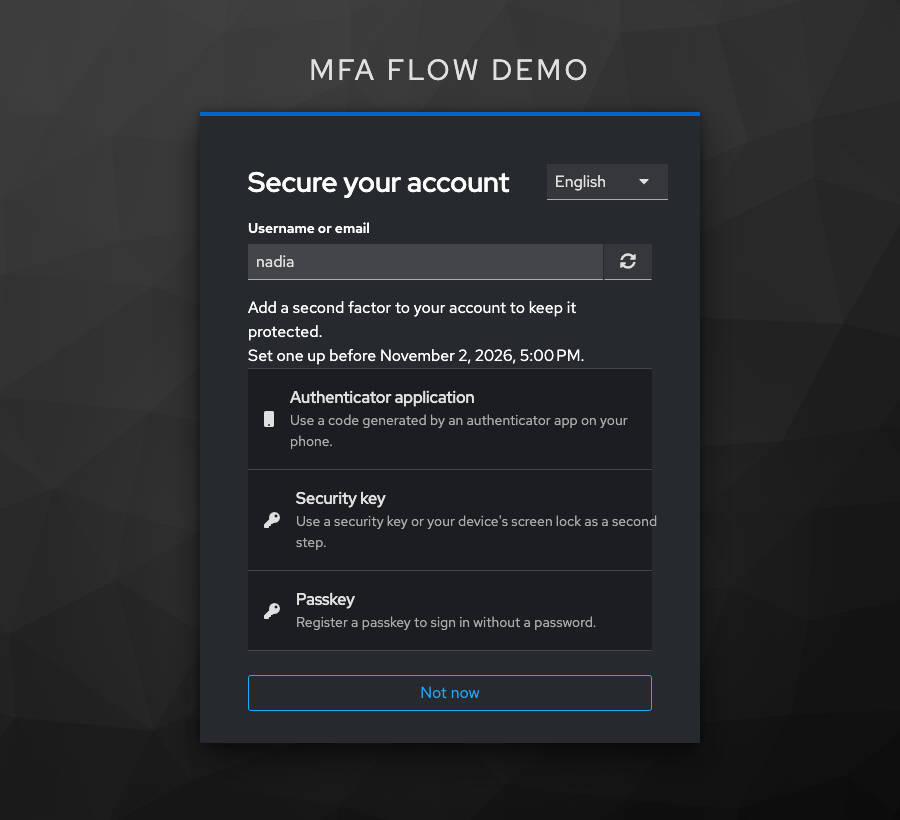
Three choices, worded for enrolment rather than for signing in:
- Authenticator application: the TOTP app on their phone, for those who want it;
- Security key: WebAuthn makes no difference between a FIDO2 key plugged into a USB port and the screen lock of the computer (Windows Hello, Touch ID), so this one choice covers both;
- Passkey: a WebAuthn credential, checked after the password like the two others.
Why the screen says “sign in without a password”. This help text is the selector’s default wording: it describes what a passkey can do in general, and the selector has no way of knowing where the flow will use it. It can be reworded per realm under Realm settings → Localization, key
selectSecondFactorHelp-webauthn-passwordless.The objection is fair. A passkey that checks a PIN or a fingerprint already combines two factors on its own: the device holding the private key, and what unlocks it. Asking for a password on top of it can look redundant. But many infrastructures still rely on the password as their base factor, and this one does: Active Directory is the source of truth for accounts and passwords, and checking the password against it at every login keeps the directory in charge of who can sign in.
Why Keycloak says “passwordless” at all. A passkey meant to replace the password has to stand on its own, so Keycloak lets administrators hold it to stricter requirements, such as user verification, through a separate WebAuthn Passwordless Policy with its own required action, credential type and authenticator. Both kinds of WebAuthn credentials can then live side by side in the same realm.
Why it does not matter here. In Keycloak, no authenticator is a first or a second factor by nature: its role comes from where it sits in the flow. Put the WebAuthn Passwordless Authenticator as an alternative to the password form and the passkey replaces the password. Put it after a required password form, as in our flow, and it is a second factor, just like the OTP. “Passwordless” names a policy and a credential type, not a place in the flow.
The deadline line and the Not now button are optional, we will come back to them when rolling it out.
Picking a factor hands over to Keycloak’s own enrolment: the stock Configure OTP page with its QR code, or the browser’s WebAuthn prompt. The selector does not ship a single enrolment screen of its own, so there is nothing new for users to learn and nothing new for you to maintain.
On the next login, the selector sees a second factor and steps aside, and the conditional sub-flow asks for it. Users who registered several factors, say the app on their phone and a security key as a backup, get Keycloak’s usual Try another way link to choose between them. No code is needed for that either.
If you have never written a Keycloak authenticator, our introduction to authenticator development is a good starting point. This one stays small because Keycloak already does most of the work.
The authenticator never collects a credential. Once the user has picked a factor, it adds the matching required action (CONFIGURE_TOTP, webauthn-register, webauthn-register-passwordless, or a third-party one) and succeeds. Keycloak runs required actions as soon as the authentication flow completes, so the enrolment happens on the very same login: no second login, no redirect of our own.
// Handing over to Keycloak: the required action runs once the authentication flow is done.
if (PendingEnrolments.remember(user, option.getRequiredAction())) {
    user.addRequiredAction(option.getRequiredAction());
} else {
    context.getAuthenticationSession().addRequiredAction(option.getRequiredAction());
}
context.success();
The required action is put on the account, so an abandoned enrolment is still waiting at the next login. It is also recorded, so the selector knows what it armed itself (more on that below). When the account cannot take that record, as with a read-only directory, the required action is attached to the current login only: Keycloak merges the required actions of the authentication session with those of the account, and runs them all.
Only the factors the screen actually proposed are accepted: a tampered form cannot arm an arbitrary required action.
Nothing in the selector is hard-coded for OTP or WebAuthn. Keycloak marks every required action able to register a credential with the CredentialRegistrator interface, and every credential provider publishes a CredentialTypeMetadata: a display name, a help text, an icon and a category. So:
- a factor can be offered if an enabled required action registers a credential of category
TWO_FACTORorPASSWORDLESS(the category Keycloak gives passkeys); - a user already has a second factor if they hold a credential in one of those categories.
RequiredActionProvider provider = session.getProvider(RequiredActionProvider.class, model.getProviderId());
if (!(provider instanceof CredentialRegistrator registrator)) {
    return null;
}
String credentialType = registrator.getCredentialType(session, authSession);
// Then: find the credential provider of that type, read its metadata,
// and keep the option only if its category is TWO_FACTOR or PASSWORDLESS.
Both sides read the same source of truth, which is what guarantees the screen never comes back after a successful enrolment. And a third-party second factor, whose required action implements CredentialRegistrator, shows up on the screen by itself, with its own name, help text and icon.
Switching MFA on for a whole company overnight is a great way to flood the helpdesk. The selector can give people time, on a schedule you decide:
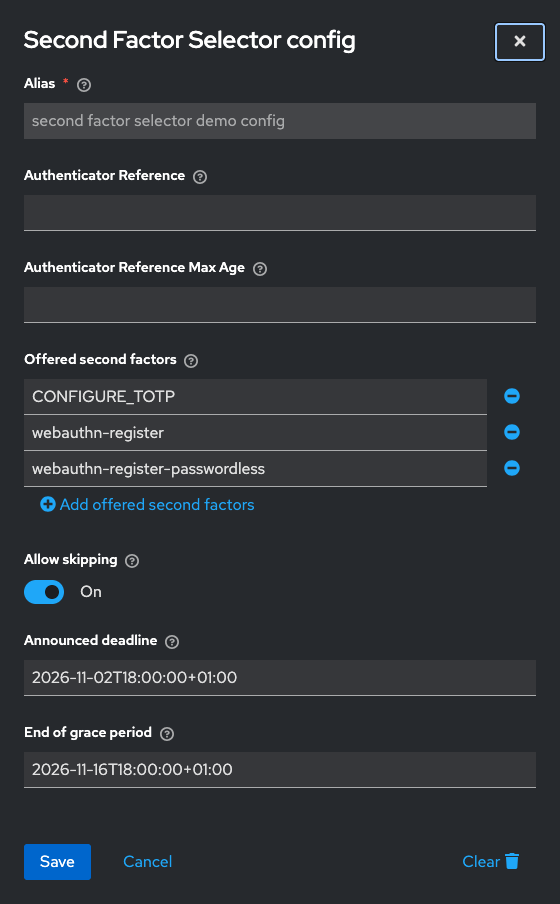
| Option | Meaning |
|---|---|
offered.second.factors | Required actions to offer. Left empty, every enabled required action able to register a second factor is offered |
allow.skip | Shows the Not now button. The screen comes back at the next login |
announced.deadline | Date shown to users as the deadline. Announced only |
grace.period.end | Past this date, Not now disappears and enrolling is the only way through |
With both dates set, the rollout goes like this:
- before the announced deadline, the screen reads “Set one up before November 2, 2026” and offers Not now;
- past the deadline, while the grace period lasts, the same screen says the deadline has passed, and still offers Not now;
- once the grace period is over, the button is gone.
Two safety nets: if the grace period ends before the announced deadline, it is the end of the grace period that gets announced, so the screen never promises time the server will not give. And a date that cannot be read is treated as a grace period already over: a typo must not hand out unlimited postponement.
Picture an employee who clicks Authenticator application, realises they would rather not use their phone, and closes the tab. The required action now sits on their account: without care, it would fire at the next login and trap them in an enrolment they no longer want.
So postponing takes back the enrolment the selector armed, and a new choice replaces the previous one rather than adding to it: hesitating never ends up demanding two enrolments. The selector only ever takes back what it armed itself, recorded in the mfa-selector.pending-enrolments user attribute: a required action set by an administrator is never touched, even when it happens to be the same one.
This is the setup the project was built for and is tested against: the directory holds the passwords and nothing else, Keycloak holds the second factors.
A password delegated to the directory is never mistaken for a second factor, and the second factors themselves are always written to Keycloak’s own store, including for federated users. A directory in READ_ONLY edit mode is therefore never written to.
One limitation: Keycloak refuses attribute writes on accounts of a READ_ONLY directory, so they cannot carry the record behind the hasty click forgiveness. The choice then lasts for the current login only: the user is never stuck, but an abandoned enrolment is forgotten. Setting the LDAP provider’s edit mode to UNSYNCED, with import enabled, restores the full behaviour while still never writing to the directory.
Releases are built for a given Keycloak version, and the version number says so: 1.0.0-kc.26.8.0 is MFA Selector 1.0.0 built against Keycloak 26.8.0. Take the jar from the latest release, or build it:
mvn package
cp target/mfa-selector-*.jar $KEYCLOAK_HOME/providers/
$KEYCLOAK_HOME/bin/kc.sh build
In the admin console, duplicate the browser flow, add Second Factor Selector as Required right after the username/password form, and bind the flow as the realm’s browser flow. Keep a conditional sub-flow after it to verify the second factor at each login:
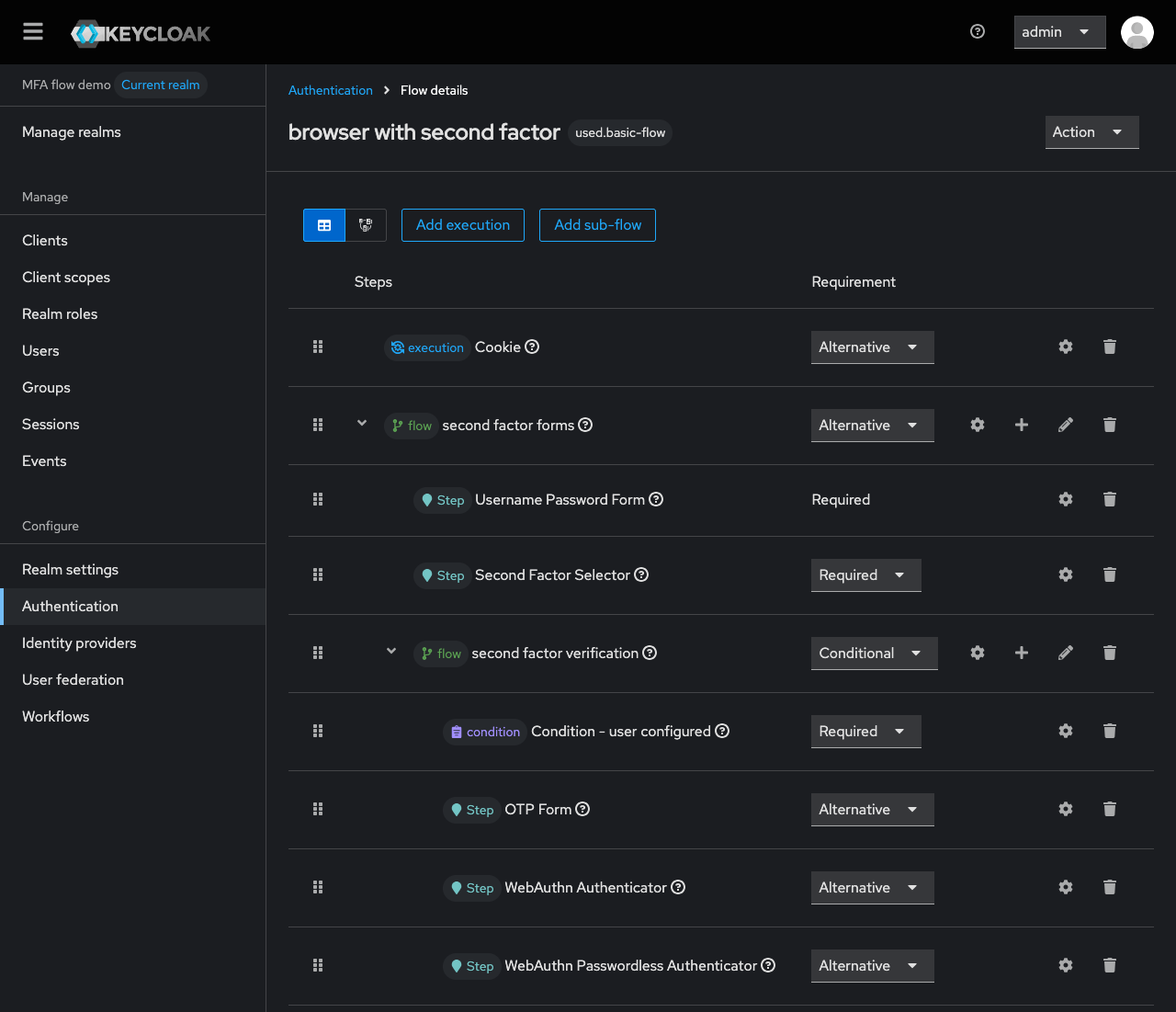
Cookie                                      ALTERNATIVE
forms                                       ALTERNATIVE
├── Username Password Form                  REQUIRED
├── Second Factor Selector                  REQUIRED
└── second factor verification              CONDITIONAL
    ├── Condition - user configured         REQUIRED
    ├── OTP Form                            ALTERNATIVE
    ├── WebAuthn Authenticator              ALTERNATIVE
    └── WebAuthn Passwordless Authenticator ALTERNATIVE
For a user without a second factor, the selector shows its screen, the condition is false so the verification sub-flow is skipped, and the chosen required action runs when the flow ends. For a user with one, the selector passes silently and the sub-flow asks for it. Then make sure the required actions you want to offer are enabled under Authentication → Required actions: a disabled required action is never offered, whether it is listed in the configuration or not.
The repository ships a Docker stack with Keycloak, an OpenLDAP standing in for the Active Directory, and a demonstration realm shaped like the flow above:
git clone https://github.com/please-openit/mfa-selector.git
cd mfa-selector
docker compose -f docker/docker-compose.yml up -d --build --wait
Open http://localhost:8080/realms/mfa-flow-demo/account and sign in as paul / password (or olivier, whose password only exists in the directory). The realm is available in French and English.
- Unit tests cover the discovery rules and every decision of the authenticator.
- End-to-end tests drive a real Chrome with Puppeteer against a real Keycloak and OpenLDAP, with a Chrome virtual authenticator for WebAuthn, so no hardware is needed: enrolling each factor, the challenge on the next login, postponing, the grace period, a tampered selection, a realm with nothing to offer, a directory user, the French translation…
- Releases are cut by tagging. The release workflow refuses a tag that does not match the add-on version and the Keycloak version of the build, runs the whole end-to-end suite, and only then publishes the jar with its SHA-256. A release can never claim a Keycloak compatibility it was not tested against.
mvn test
cd e2e && npm install && npm test
- The selector enforces enrolment, not verification. Asking for the second factor at each login remains the job of the conditional sub-flow. Without it, users would enrol a factor that is never asked for.
- A platform authenticator is bound to one computer. A credential registered with Windows Hello or Touch ID lives in that laptop. Encourage users to add a backup factor from the account console, and remember that when an administrator deletes a user’s second factor, the selector simply shows its screen again at their next login.
- Recovery codes can be offered, but we leave them out of the demonstration realm: they belong to account recovery rather than to everyday sign-in.
Legally, you cannot require an employee’s personal phone. In practice, most employees will use it anyway. MFA Selector reconciles the two: a second factor is mandatory, the phone is offered, never required. Those who want the app get it, the others get a security key or their computer’s screen lock, and nobody gets past the login without a second factor.
It fills a gap Keycloak leaves between “force this factor” and “force nothing”, with a small authenticator that leans on two existing Keycloak mechanisms rather than reinventing enrolment. Third-party factors join the screen with no extra work.
Give it a try, open an issue, send a pull request. And if your own constraints call for a custom authenticator, that is what we do: Keycloak extension development.
Repository: https://github.com/please-openit/mfa-selector